
Complete Keyboard Test Guide for Daily Work and Gaming
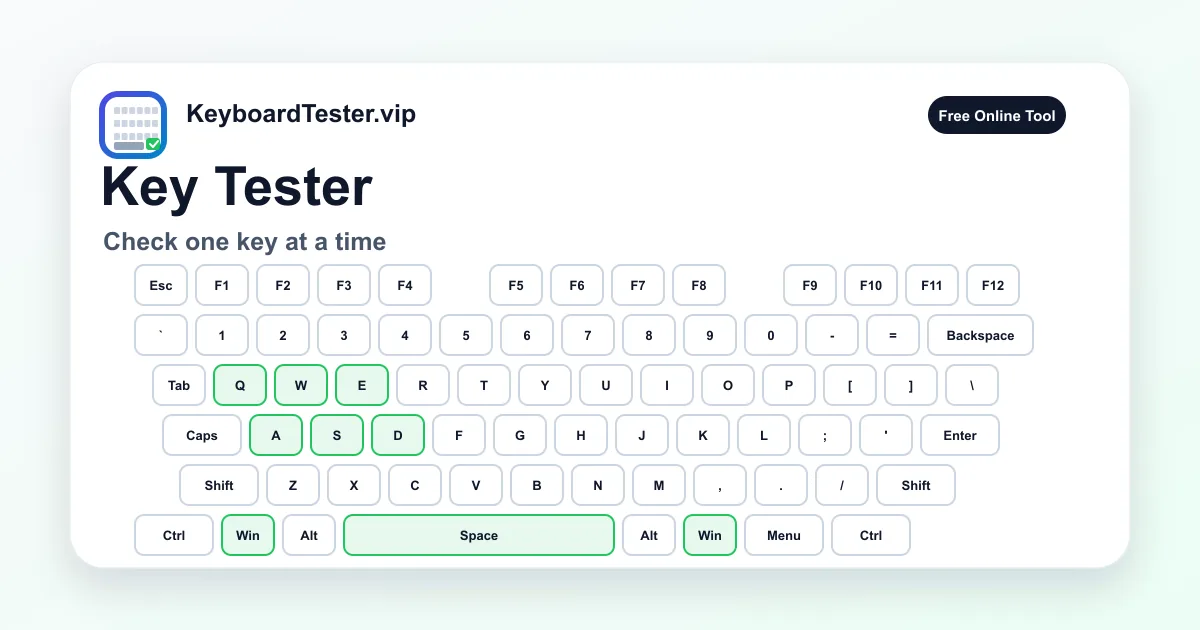
This page is designed to give you a reliable keyboard test workflow in one place, whether you are validating a new mechanical board, checking a laptop after liquid cleaning, or confirming that every switch still responds before a deadline. Instead of forcing you to install desktop software, the tester runs directly in the browser and maps your physical input to a full 104-key visual layout. You can watch each key light up, track what is still missing, and review your key history to confirm consistency. This approach is useful for office users, gamers, students, and repair technicians because the process is fast, visual, and repeatable across different devices. For teams and repair workflows, this keyboard test routine also makes session-to-session comparisons much easier, and a quick keyboard test before important work reduces avoidable input failures.
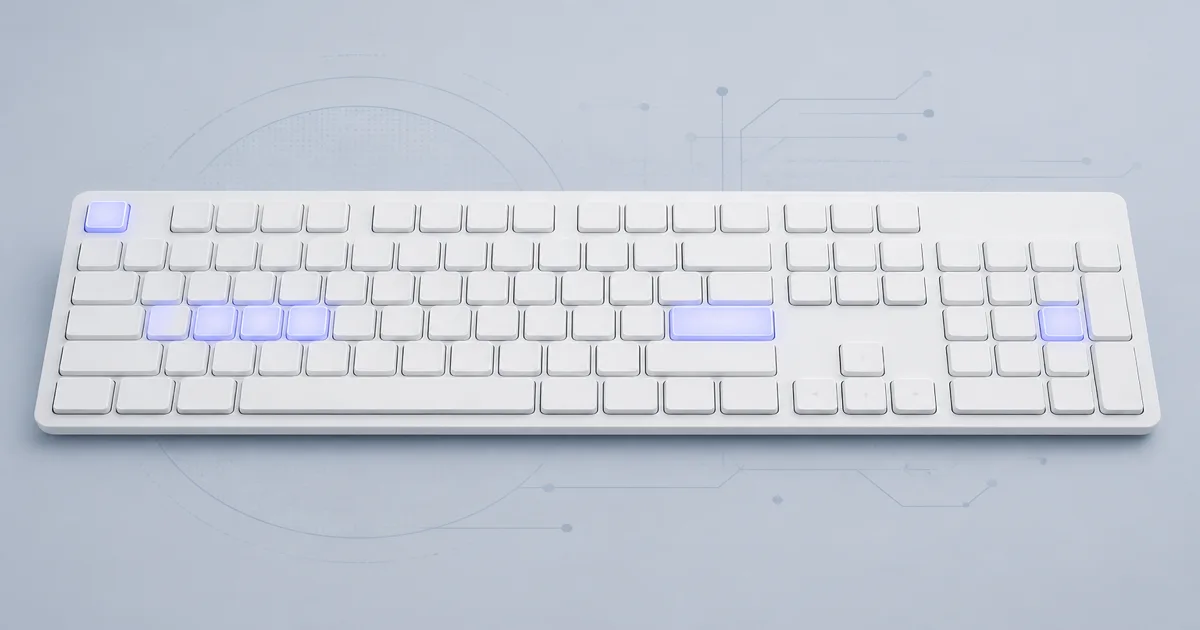
A strong keyboard test is not just about checking letter keys. Real hardware issues usually appear on modifiers, function keys, arrow clusters, and the numpad, especially after heavy use. That is why this page keeps the full-size matrix visible and adds counters for pressed keys, last key, and remaining keys. You can quickly see if the problem is isolated or pattern-based, such as a full column failing because of membrane damage. If you switch between Windows and Mac hardware, the built-in label toggle helps you verify legends without changing the physical scan map. The goal is practical confidence: you finish the session knowing exactly which keys are healthy and which keys need repair attention, and this complete keyboard test gives you faster repair decisions.
How to run an accurate check in three minutes
- 1
Start with a quick baseline keyboard test: press every alphanumeric key once from top-left to bottom-right, then confirm the remaining counter drops exactly as expected.
- 2
Move to function and control zones: test Esc, F1-F12, modifiers, and navigation keys. Many users skip these, but these are often the first keys to fail in older keyboards.
- 3
Validate timing behavior: if one key seems unstable, open Double Type Test to inspect chatter instead of guessing.
- 4
Validate multi-key behavior: open Ghosting Test and hold combinations you use in games or shortcuts.
What the tester panels tell you
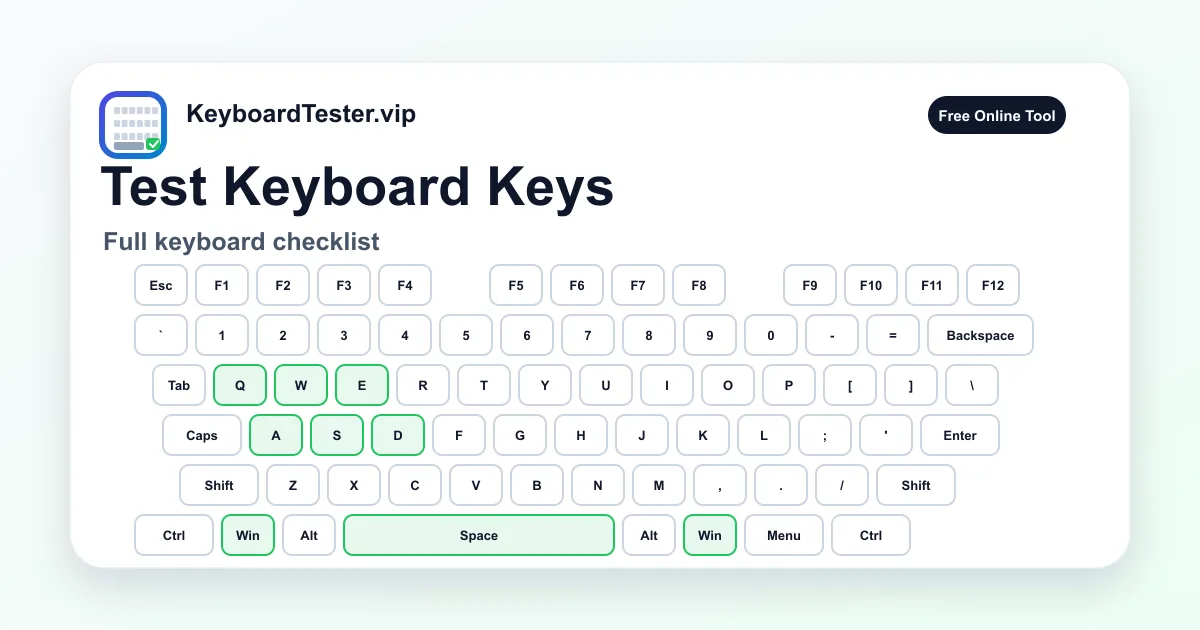
The counters above the keyboard are more than visual decoration. They support a measurable keyboard test routine. “Keys Pressed” shows your live active set and helps you catch stuck keys. “Last Key” confirms which scan code was captured most recently, useful when you suspect key mapping confusion. “Remaining” tells you whether you have fully covered the layout or still missed isolated keys like Pause, Print Screen, or Num Lock. The history panel adds a chronological trail so you can review whether a key appeared once, repeatedly, or never appeared at all.
If you are troubleshooting for clients or teammates, this data-driven flow makes your keyboard test report easier to explain. Instead of saying “it feels broken,” you can state that a specific key group fails to register or that one key produces repeated events under a fixed threshold. That clarity saves time when deciding between cleaning, switch replacement, firmware checks, or full keyboard replacement. In practical support work, a repeatable keyboard test record is often the difference between guesswork and a confident fix plan.
Common issues and practical fixes
- Single dead key: remove debris under the cap, reseat the switch if hot-swappable, then repeat the same keyboard test path.
- Whole block missing: check cable, Bluetooth pairing, or controller ribbon connections before replacing individual switches.
- Random duplicates: measure repeat intervals on the Double Type page and compare against your normal typing rhythm.
- Shortcut conflicts: remember that OS-level shortcuts may bypass browser capture even when hardware is healthy.
- Layout mismatch: switch label mode to match your platform so visual verification remains intuitive.
When to run this page regularly
A scheduled keyboard test once every few weeks is useful if your keyboard is mission critical. Streamers and esports players can run a short pass before sessions. Remote workers can validate hardware before interviews or presentations. Repair shops can run a pre-delivery verification pass after cleaning or solder work. Even if your board feels normal, routine checks catch slow degradation early, which is usually cheaper to fix than a full replacement. Treat this as preventive maintenance: a short recurring keyboard test can protect productivity when one failing switch would otherwise interrupt your day.
FAQ for quick decisions
Is this enough for a full hardware diagnosis?
It is an excellent browser-level keyboard test for key registration, but firmware-level faults may still require vendor tools or BIOS-level checks.
Can I use it after cleaning or keycap changes?
Yes. A post-maintenance keyboard test helps verify that every key still actuates correctly and that no stabilizer key was reinstalled incorrectly.
Why are ghosting and chatter on separate pages?
They measure different failure patterns. Use Ghosting for simultaneous input limits and Double Type for rapid repeat anomalies under a defined threshold.
Why do Fn and some media keys not show in this keyboard test?
Many Fn-layer and brightness/media shortcuts are consumed by keyboard firmware or the operating system before they reach browser JavaScript, so this keyboard test may not see those keys even when hardware is healthy.
Can wireless mode change keyboard test results?
It can. Low battery, Bluetooth interference, or a weak 2.4GHz dongle path may introduce misses. For important validation, run the keyboard test once wirelessly and once through a wired connection.
Is my typed text uploaded when I run this keyboard test?
The keyboard test is built to show key state, history, and coverage in-session. You should still avoid typing passwords in any diagnostic page, but normal validation does not require sending personal text to get results.
Can I run this keyboard test on mobile devices?
For accurate diagnostics, use a physical keyboard. Mobile virtual keyboards and IME layers do not expose the same event model needed for a complete keyboard test.
Do I need to download a keyboard tester?
No. This keyboard tester runs online in the browser, so you can check keys without installing software or downloading an app. Click the page, press keys, and watch the 104-key visualizer, last key, remaining count, and history.
Does this keyboard tester work on Mac as well as Windows?
Yes. Use the layout toggle to switch between Windows and Mac key labels such as Win/Command and Alt/Option. The keyboard tester still reads the same physical input; the toggle only changes legends so an online Mac check is easier to follow.
Can this keyboard tester show F13 or extra function keys?
The on-screen map is a full-size 104-key layout through F12. If your board has F13 or other extra keys and the browser receives those events, they can still appear as Last Key or in history even when there is no dedicated F13 key on the visualizer.
Is this Keyboard Tester Pro or paid software?
No. KeyboardTester.vip is a free keyboard tester website. It is not a paid Keyboard Tester Pro download. You get the online key map, history, and remaining-key coverage without a license.
Is this also a keyboard input tester?
Yes. This page is a keyboard input tester in the sense that it shows whether each key event reached the browser. Use it for registration, stuck keys, and coverage, not for measuring typing speed.
Does this keyboard tester measure latency or polling rate?
No. This keyboard tester checks which keys register, which keys remain, and what appeared last. It does not measure keyboard latency or polling rate. If a key never lights up, treat that as a detection problem. If every key lights up but games feel delayed, you need a latency or polling tool instead of this page.
Can I test a mouse on this keyboard tester?
No. This is a keyboard tester only. Mouse buttons, scroll wheels, and pointer polling are outside this page. Use the visualizer here for keys, then a dedicated mouse tester if you need pointer hardware checks.
Is this the same as a keyboard switch tester?
No. A keyboard switch tester is usually a small board for trying mechanical switch feel before you buy. This page tests whether each installed key sends input. If a switch chatters or double-fires, continue on the Double Type Test after you find the suspect key here.
When should I use the key, button, or layout testers instead?
Stay on this keyboard tester for a full-board pass. Open Key Tester or Keyboard Button Tester when one key or button is the whole problem. Use Keyboard Layout Test when keys light up but the printed symbol, US/UK layout, or Windows and Mac labels do not match.