
Spacebar Not Working guide
The spacebar is one of the most used keys and one of the most mechanically complex because of stabilizers. A spacebar not working can come from the switch, stabilizer wire, keycap fit, debris, or software input issues.
Use the live test to see whether Space appears reliably, then compare center presses with left and right edge presses.
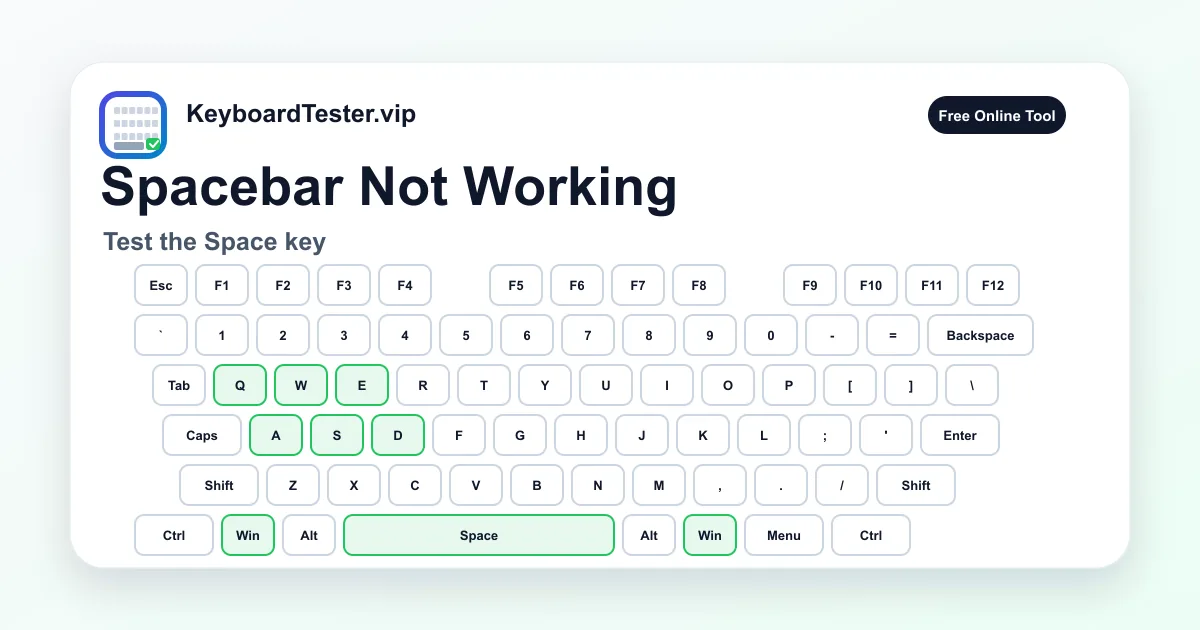
Quick diagnostic checklist
- Press the center, left edge, and right edge of the spacebar.
- Check whether the key stays active after release.
- Remove debris around the stabilizer if safe.
- Use double type testing if the spacebar repeats unexpectedly.
Mechanical causes of spacebar failure
A spacebar can fail even when the switch itself works because the stabilizer is misseated or the keycap is not clipped correctly. Edge presses are especially useful for finding stabilizer problems.
If the center press works but one edge fails, inspect the stabilizer. If every press fails, check the switch, socket, membrane, or laptop key mechanism.
Software and browser behavior
The page prevents Space from scrolling while testing so you can see active input. If Space works here but not in a specific app, inspect the app shortcut settings or text-field focus.
If Space duplicates, use the double type test. A worn switch or dirty contact can create extra spaces that are hard to diagnose by typing alone.
FAQ
Why does the page not scroll when I press Space?
The tester blocks browser scrolling for Space so the key can be tested cleanly.
Why does only one side of the spacebar fail?
That often points to stabilizer alignment, keycap mounting, or uneven mechanical travel.
Can cleaning fix a failing spacebar?
Yes, especially if debris or stabilizer friction is causing missed or sticky presses.